
How to Manage Your Inventory
Do You Sell Products? How QuickBooks Can Help You Manage Inventory
Whether you offer one-of-a-kind baseball cards or batches of identical Christmas ornaments, QuickBooks’ inventory tracking tools can help.
If your business sells products, you already know how critical it is to monitor stock levels accurately. Stay balanced, and you’ll avoid running out of bestsellers while not tying up cash in items that sit on shelves.
You may have a general feel for what’s selling just by filling orders, but instincts aren’t enough. You need real data—so you know when to reorder, when to discount, and when to discontinue slow movers.
QuickBooks can take much of the guesswork out of inventory management. It:
Lets you create detailed records for your items.
Updates quantities automatically and alerts you when stock is low.
Provides specialized reports that show you exactly where things stand.
Getting ready
Before you begin adding inventory, check that QuickBooks is set up properly. Open to the Edit menu, select Preferences, and then choose Items & Inventory. If you’re the administrator, click the Company Preferences tab to see your options here, as shown in the image below.
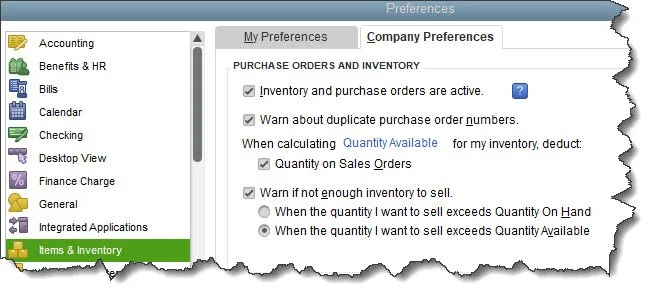
Be sure inventory tracking is enabled before you start.
Make sure the option Inventory and purchase orders are active is checked. If your version supports sales and purchase orders, select the settings that make sense for your workflow. We recommend choosing When the quantity I want to sell exceeds Quantity Available so committed items aren’t oversold. Click OK when you’re finished.
Creating product records
Even if your inventory is small, build a thorough record for every item. That way, you always know what you have without hunting for it. Running short on stock during an order could mean losing a customer to a competitor.
To create a record, open the Lists menu. Select Item List, then click the drop-down next to Item and choose New. In the new window, select Inventory Part as the Type so QuickBooks knows to track quantities. If you assemble products with multiple parts, setup is more complex. We can guide you through that.
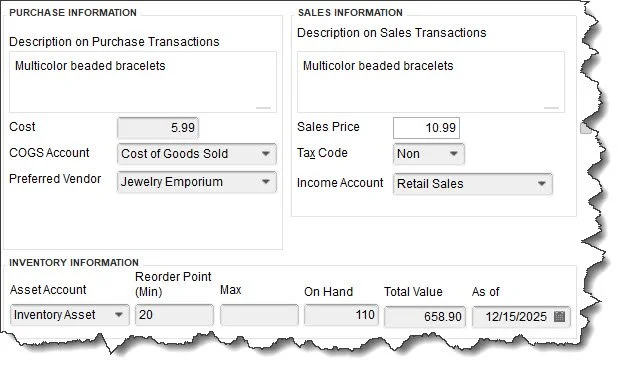
Sample product record screen.
Enter an Item Name/Number, then fill in purchase and sales details, including cost, price, and description for transactions. The default COGS Account often works fine, but ask us if you’re unsure. You can also choose a Preferred Vendor and assign a Tax Code. If sales tax isn’t set up yet, we can help. For most retailers, the Income Account should be Retail Sales.
In the Inventory Information section, confirm the default Asset Account, enter a Reorder Point, and type in the On Hand quantity. QuickBooks calculates the total inventory value automatically. Click OK to save.
Built-in safeguards
What if you try to sell more than you actually have? QuickBooks will stop you. Imagine a customer wants 120 of your multicolor bracelets. Two safeguards apply: QuickBooks displays a warning on the invoice (as shown below). You can also run the Inventory Stock Status by Item report for a real-time snapshot (Reports | Inventory).
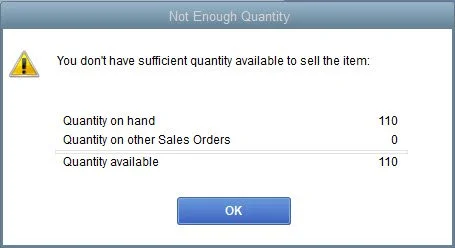
QuickBooks alerts you if you try to sell stock you don’t have.
QuickBooks does a solid job of handling standard inventory tracking, but you’re still responsible for reviewing reports and adjusting buying decisions. Reports like Sales by Item Detail can help.
10 tips for managing Inventory
Knowing how QuickBooks handles inventory can save money, minimize stock imbalances, and help you plan for the future. We’ve discussed some of the actual theory of inventory management. Here’s a recap and some additional tips:
Keep your storage area well-organized. Use labels where you can.
Make your product records in QuickBooks as thorough as possible.
Monitors stock levels closely. This can keep you from tying up too much money in products that aren’t moving. You’ll also be less likely to run out of popular items, which can cause you to lose sales – and customers. QuickBooks’ Inventory Stock Status by Item report can help.
Set a realistic reorder point. This may require trial and error. Build in shipping times.
Do a full inventory count annually. Spot-check regularly and prioritize high-value items.
Cultivate preferred vendors. You may eventually get discounts for high order volumes.
Minimize the number of vendors you order from. Keep this in mind when you’re selecting them. Can you order multiple types of items from the same vendor?
QuickBooks can’t help you forecast future needs. But you can do some of this on your own by using reports to track your sales flow.
Always have a backup vendor for each product. You never know when a company is going to stop stocking your items or cease operations. You want quick turnaround if this happens.
If you sell one-of-a-kind items, all of these rules are equally important. Create a smart storage system to save time as you’re filling orders.
Do you need more advanced Inventory management?
If your business grows beyond the capabilities of QuickBooks Pro or Premier, you can invest in a more advanced inventory solution. We can discuss options with you and answer any questions about the basics outlined here. Contact us to set up a session or two.

Total Business Care Can Help
For more information, please contact the Accounting Team or email the office at info@totalbizcare.com to make an appointment.
To view more about the TBC Accounting Team, please visit our Accounting page or our QuickCare℠ page.