Get Ready for 2026
2026 Is Coming: Use QuickBooks Online to Get Ready
Here’s an important to-do for your crowded December to-do list: Get your finances ready for 2026 using QuickBooks Online.
You know what it’s like coming back to work from the end of the year holidays. You probably have reams of email to read and maybe orders to fill.
And you probably have a to-do list of tasks left over from December that you couldn’t get to. Usually, that involves your company’s finances, which is always a priority. We’d like to suggest some ways to ensure that your financial to-do chores are minimal in early January. If you spend some extra time with QuickBooks Online before the calendar turns a page, you’ll be able to turn your attention to other work early in the month, knowing that you wrapped up your money matters before the holidays.
Here are five things you can do this month to make next month less stressful. QuickBooks Online makes this easy.
Pay as many bills as possible
This may be difficult because there are often extra expenses at the end of the year. Besides the added holiday costs, you may have end-of-year payments due. But meet as many of your financial obligations as you can.
It’s easy to find out what you owe in QuickBooks Online. Remember that the user interface recently changed significantly, and you may not be used to it yet. Click the Reports icon in the toolbar, then Standard Reports. Scroll down to What you owe. There are two reports here that could be most helpful:
Unpaid Bills shows your unpaid bills, with due dates and days past due.
A/P Aging Detail lays out this information in more detail, in a more easy-to-read fashion. It provides lists of bills past due grouped by the number of days you are in arrears, from 1-30 to 91 or more.
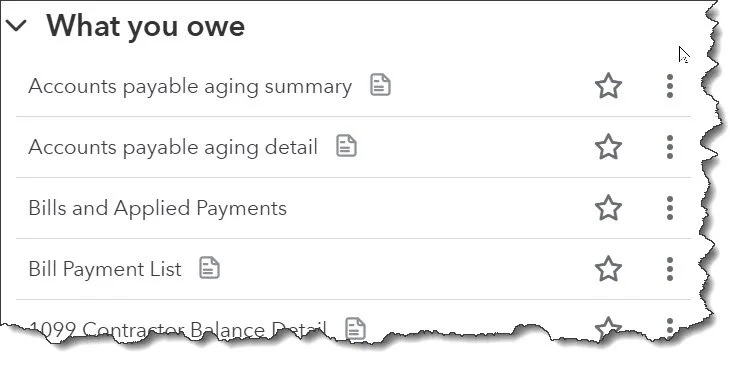
QuickBooks Online’s Standard Reports have a section covering money you owe vendors and contractors.
Try to collect what’s owed to you
Find out how much money you have out there in unpaid invoices. Click Reports | Standard Reports in the toolbar again and scroll to the section titled Who owes you. Reports you should run here include Open Invoices and Accounts receivable aging detail.
Struggling with getting payments from customers in a timely fashion? Contact us after the first of the year, and we can schedule a meeting to discuss this common problem.
Get statements ready for past-due customers
As we already noted, it may be challenging to get customers to pay their current bills during December, let alone catch up on aging balances. You can just send another invoice or a reminder email. But it may be more effective to create statements for these individuals and companies. There are three types:
Balance Forward displays all invoices, payments, and current balance for a defined period.
Open Item shows customers all their unpaid invoices from the last year.
Transaction Statement lists all transactions for a period you specify.
Your customers may request a statement occasionally just to have a historical record of their financial interaction with you, or if they’re questioning what’s been billed and paid. But they can also be effective in nudging past-due customers to catch up on their monetary obligation to you.
To create a statement, click the circled plus sign (+) in the upper left corner, then click Statement under Customer. In the page that opens, enter the Statement date (which may or may not be the current date) and choose the correct Statement type from the drop-down list.
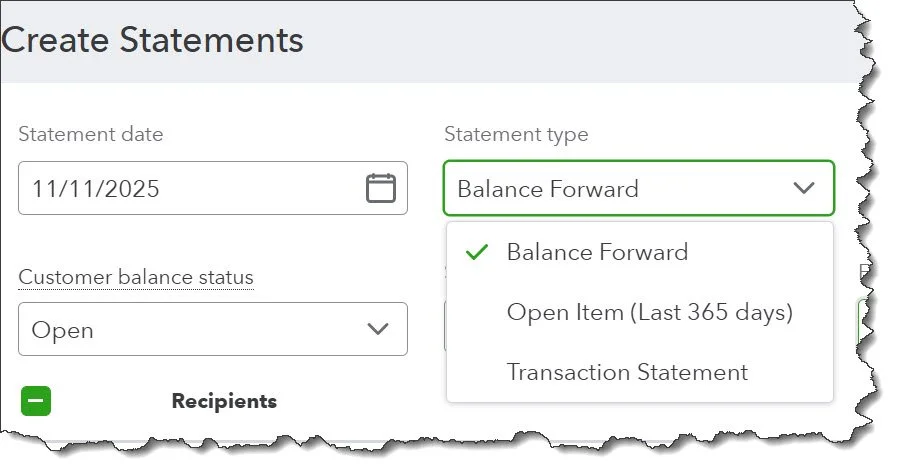
You can choose from three different types of customer statements.
Analyze your 2025 sales
You probably have a sense of how your business did this year, especially if you’re self-employed and have been estimating your tax obligation every three months and paying quarterly income taxes. But here again, reports can be more precise.
Click Reports in the toolbar again and scroll down to Sales and customers. There are several reports that can be helpful here, including Sales by Customer, Customer Type, Product/ Service, and Class. These reports are available in Summary or Detail, and you can customize them by Report period and Accounting method, for example. You can modify the columns and group results by multiple options, like Product/Service and Customer.
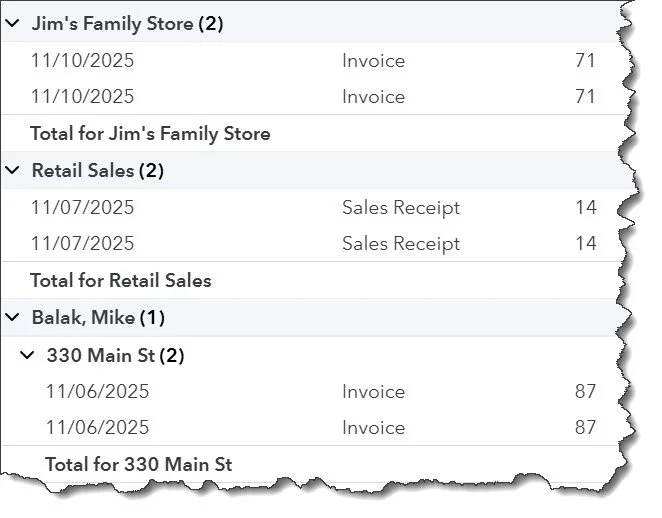
The Sales by Customer Detail report can provide a lot of information about your 2025 sales.
Perform a preliminary review of 1099 vendors
Make sure that every contractor who should receive a 1099 has completed a W-9 form and that appropriate vendors have been set up to be tracked as 1099 recipients (you should have checked a box labeled Track payments for 1099 in their records).
Hover your mouse over My Apps in the toolbar and then over Expenses & Bills. Click Vendors. Look for the 1099 Tracking column and make sure there’s a checkmark by every affected vendor. Go back to Expenses & Bills and click Contractors. On this page, you can see whether each contractor’s W-9 is ready or has only been requested or is missing so you can follow up. Contractors always receive 1099s, so you don’t have to indicate their status when you create their records.
To double-check, go back to Expenses & Bills again and select 1099s. Then click Gather recipient tax info. You’ll see a list of the contractors and vendors who meet the IRS criteria to receive a 1099. If you notice that any companies or individuals are missing, you can click a link to add them. QuickBooks Online then displays a list showing who you’re tracking, why some shouldn’t be tracked, and who should be added.
There are some reports you may want to consult, too. Want to make sure you’re current with contractor payments? Run 1099 Contractor Balance Detail, which will show any open balances. Do you pay vendors using QuickBooks Online bills? Look at Unpaid Bills. You might also want to look at 1099 Transaction Detail.
Total Business Care Can Help
For more information, please contact the Accounting Team or email the office at info@totalbizcare.com to make an appointment.
To view more about the TBC Accounting Team, please visit our Accounting page or our QuickCare℠ page.